
If you’re like me, you surround yourself with loads of fantastic artwork to inspire your D&D games. My Obsidian vault is filled with images to represent characters, locations, and much more. But as its grown, I’ve learned a few important principles and tips for managing images in Obsidian.
Storing vs. Linking
Should we store images in our vault or link to source material on the internet?
The beauty of markdown is that we can link to external sources for images. Something as simple as the following would render an image from a website in our vault:
This is probably the most appropriate for images that we don’t own or have the rights to use. But its also reasonable to assume that most of us are using artwork for personal use, in our home games. I could be wrong, but I also like to assume that human artists might appreciate us using their works over AI art, even for personal use. With that in mind, I choose to store artwork in my vault directly.
Why store it? Well, I’ve got artwork stored from as far back as 2011 (Google Drive/Photos back then). In recent years, I’ve tried and failed to find the artist or artwork online for some of it. Turns out that the internet is not forever, things that die just tend to die slowly. I’m glad I have an archive of the exact artwork I’ve used in my games.
Link to images if you want but know they could move locations or vanish, rendering your notes outdated. Images you link to locally are more resilient.
Manage File Sizes Easily
How do we keep images from bloating our vault size?
Images have a much larger file size than markdown files. My vault has between 500-1000 images most of the time. That was drastically increasing the size of my vault and affecting load times on mobile. Now that I use Obsidian Sync, I don’t think it would be as much of a problem but it’s still worth staying on top of this issue. For that, I recommend the Image Converter community plugin.
This plugin can do a lot with images but I’m going to focus on the most impactful: converting to smaller files. I use the plugin to convert any image I add to the vault to a WEBP format. They’re a lot smaller with no perceptible loss in quality (get nerdy here). With the plugin configured, I can drag and drop an image into my vault and it will convert it, replace the link with the converted image, and delete the older, larger image. All within about 1-2 seconds.
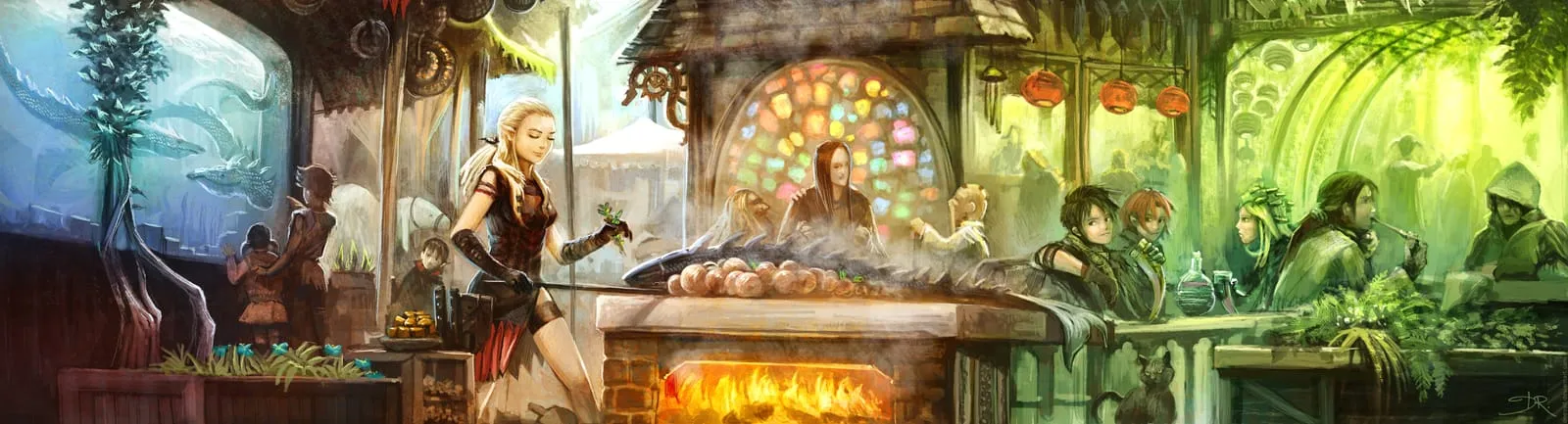
“Dragonfish Restaurant” by David Revoy − CC-BY 4.0
The above image on this post is a 4.5 MB JPEG. After adding it to my vault, it’s now stored as a 905 KB WEBP. That’s ~79% reduction in filesize. Multiply that across hundreds of images and you’ve got some serious space savings.
Beware CSS Traps
You can do neat things with CSS. You can also muck up your notes.
You can do really neat things visually with themes and CSS snippets in Obsidian. Some snippets turn images into nice profile-like avatars and others create an almost Wikipedia-style sidebar for your notes. I don’t recommend using snippets that require special syntax in your notes or links.
Over time, that syntax can become garbage if you change your mind and stop using the snippet or theme. At that point, it’s a lot to clean up. And up front, it’s not delivering much value. However, if appearance is important to you, just be aware of the risks when adding a lot of special syntax to your notes.
Themes are a good place to start and relatively safe. If you change your mind, you can turn them off to change themes with a few clicks.
Properties and Images
Properties unlock powerful capabilities in Bases. Do they matter for images?
When we set a property with a link a note’s image, we can capitalize on it with Card views in our bases:
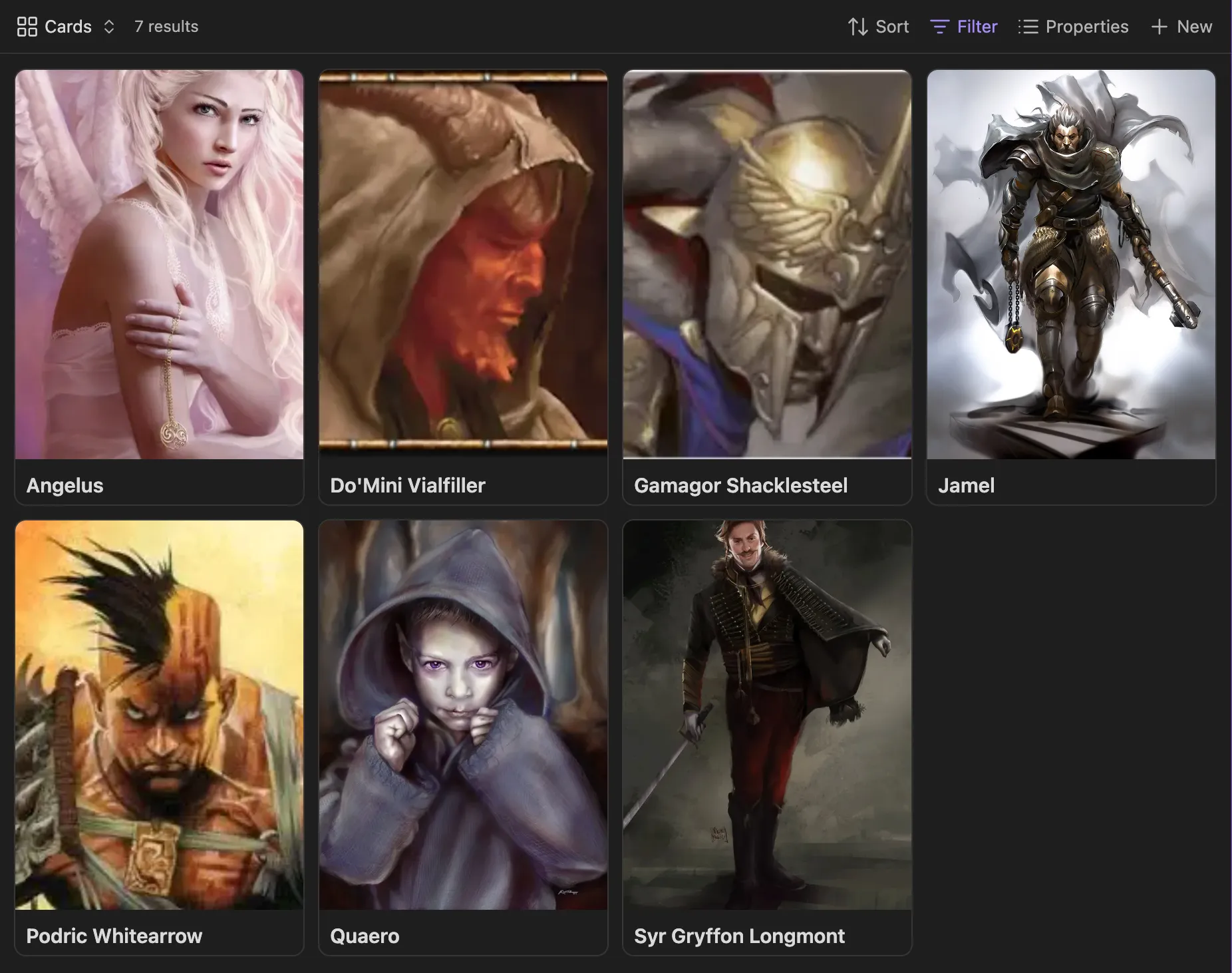
I use the image property for most notes. Simple enough. It’s a neat feature but probably not adding a ton of value in our notes. However, we can use that same strategy to power banners and avatars.
Banners and Avatars
Banners add a nice visual touch to our notes.
The Pretty Properties community plugin adds a nice set of features to display an image as a banner or an avatar style (cover) on our notes. In the settings, we can have the plugin use our image property when determining which image to use for a banner. This will power both card views within bases and a note’s banner image.
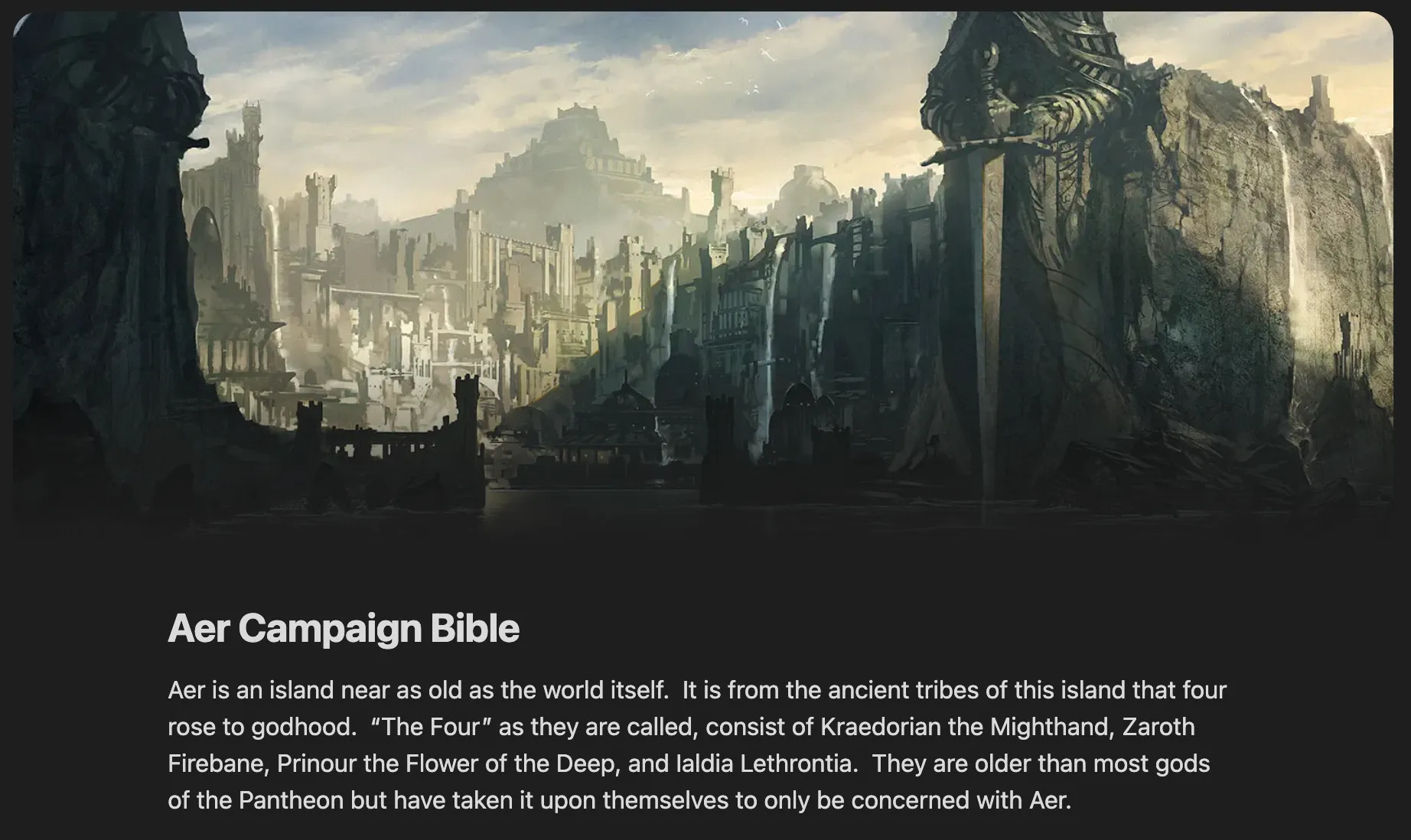
Banners add a nice visual element atop our notes.
Banners work great for locations and scenery. But character and item images are often an awkward size for a banner. That’s where we can tap into the plugin’s “cover” image features. I use the avatar property instead of image for character and item notes to have it render a cover rather than a banner. That can also be set on our character and item bases to double as the “card view” property.
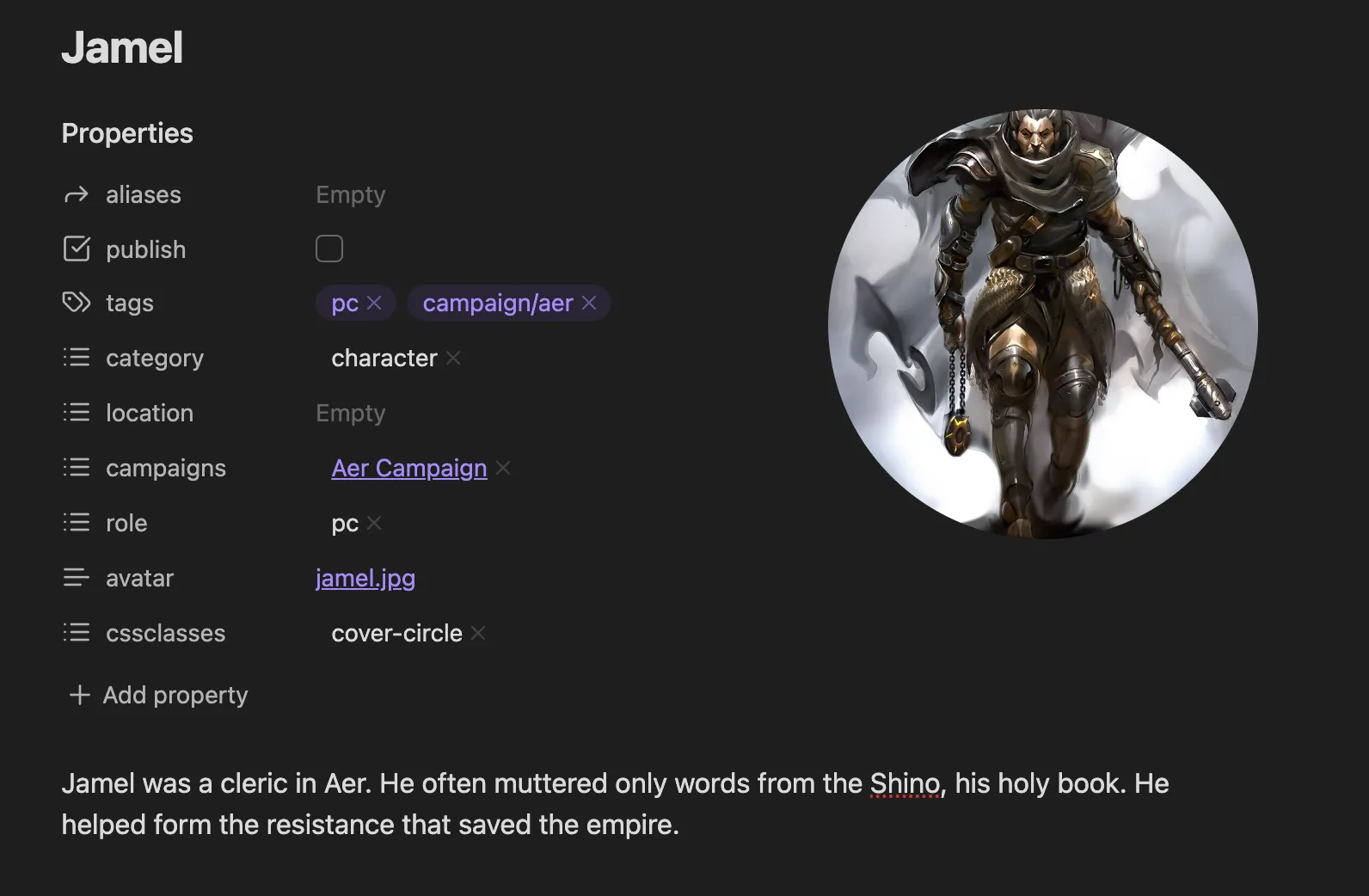
A simple setting (cover position: right) and css class will set the picture to a circle and right-side position. But it’s location, shape, and size are customizable. I appreciate how it uses CSS classes rather than additional properties.
With these few key ideas and resources in mind, we can do a lot with images. We can also avoid a lot of future headaches.
Game on.